Customize Settings for Remote Access Session
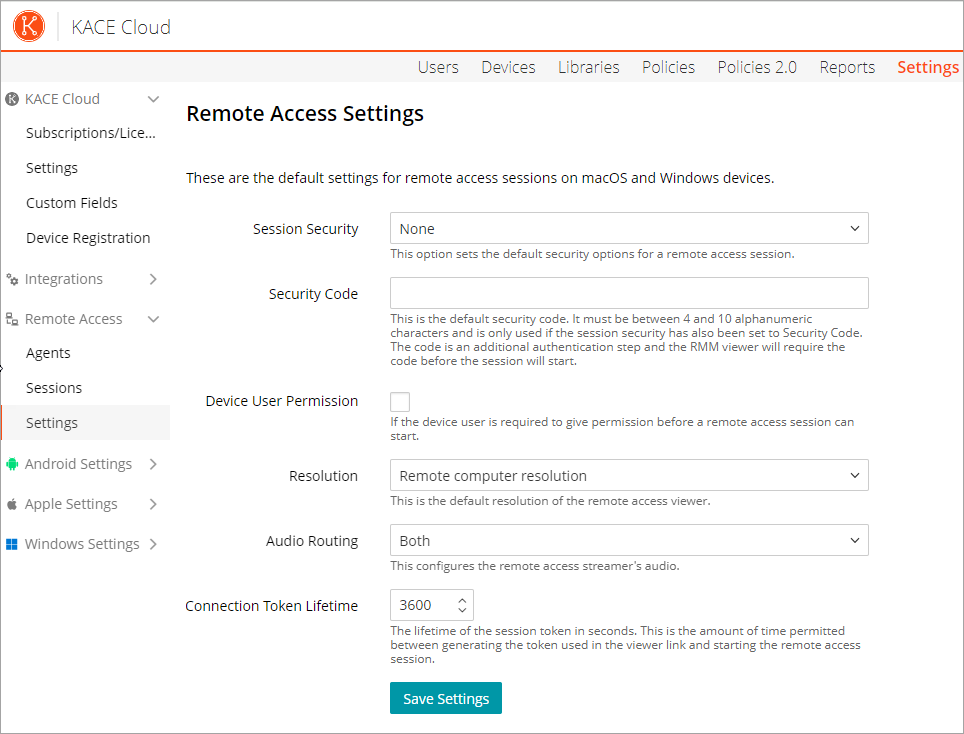
The settings applied on this page are the default settings for remote access sessions on macOS and Windows devices. You can customize the settings on this page.
To customize settings for a Remote access session,
-
In the Settings tab, go to Remote Access > Settings.
The Remote Access Settings page opens. -
On the Remote Access Settings page, add appropriate information in the fields.
- None
- Security code
- Login
- Remote computer resolution>
- Best Fit to client
- 1024 x 768
- 800 x 600
- Remote computer only
- Remote computer viewer only
- Both
- Click Save Settings.
| Field | Description |
| Session Security |
Choose one of the options from the drop-down list. This option sets the default security option for a remote access session. |
| Security Code | Indicates the default security code with alphanumeric characters between 4 and 10. It is used only if the session security has also been set to Security Code. The security code is an additional authentication step and the RMM viewer requires this code before the session starts. |
| Device User Permission | Select this if the device user should allow it before a remote access session starts. |
| Resolution |
Set the default resolution of the remote access viewer. The options are: |
| Audio Routing |
Choose the option to configure the remote access streamer's audio. The options are: |
| Connection Token Lifetime | Indicates the duration of the session token in seconds. This is the amount of time permitted between generating the token used in the viewer link and starting the remote access session. |